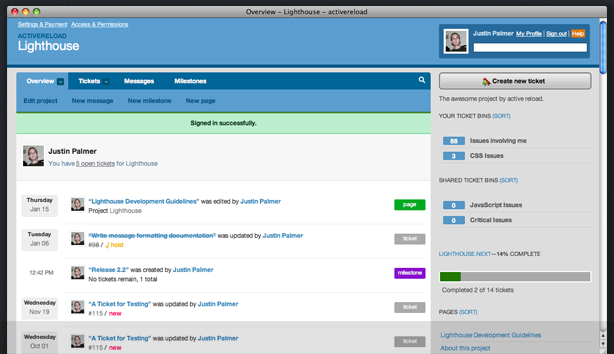
How to search for Tickets In Lighthouse

You can use the Ticket search icon to find tickets according to some keywords. By default, it will find all ticket matches that contain ALL of the words that are entered. Searching for “ruby rails” will find tickets matching both ‘ruby’ and ‘rails’ in the title or body.

The dropdown list provides a few common custom searches to assist you:

  • My Tickets – Shows all tickets you are watching, the currently logged-in user.
  • All Tickets – No keywords provided, finds the most recently updated tickets.
  • Open Tickets – Find all tickets that haven’t been resolved in any way yet.
  • Closed Tickets – Find all tickets that have been resolved, put on hold, or marked as invalid.

You’ll also see entries to search for tickets assigned to other members of your team, or specific to a certain active milestone. There are some detailed search keywords that you can use for customized search results. Keywords should be entered after the query and follow this format: keyword:value keyword2:"value 2". As the example shows, any values with spaces must be surrounded by quotes.

  • watched – This shows what tickets you are currently watching. You can’t search on other users’ watched tickets, so the only valid value is watched:me.
  • responsible – This lets you search for tickets that are assigned to the given person. You can enter the person’s full name, or just their first name. Also, you can use ‘me’ as a special keyword to find your own tickets. Use ‘none’ as a keyword to find unassigned tickets.
    • Examples:
      • responsible:"Ricky Bobby" Display tickets assigned to a specific user, use quotes around a first and last name
      • responsible:rick Search for tickets assigned to First name, no need for quotes
      • responsible:me Displays all tickets assigned to me
      • responsible:none Displays all tickets not assigned yet
      • responsible:any Displays all tickets assigned to someone
  • reported_by – Similar to the responsible keyword listed above, this searches for tickets used that were reported by the given user.
    • Examples:
      • reported_by:"Ricky Bobby"
      • reported_by:Will
  • milestone – This selects the ticket’s milestone. You can either enter part of the milestone name, or use one of the two keywords ‘none’ or ‘next.’ The ‘none’ keyword will find tickets without a milestone. The ‘any’ keyword finds tickets with any milestone. The ‘next’ keyword will find tickets for the next milestone in the current project.
    • Examples:
      • milestone:"1.0 Launch"
      • milestone:none
      • milestone:next
  • state – This filters on the ticket’s current state. Valid states include new, resolved, hold, invalid. You can also use two special keywords: open (includes open and new tickets) and closed (includes resolved, hold, and invalid tickets).
    • Examples:
      • state:open
      • state:closed
  • tagged – This finds tickets matching the given tag. You can use it multiple times for multiple tags
    • Examples:
      • tagged:ruby
      • tagged:ruby,rails
      • tagged:rails tagged:"ruby on rails"
  • updated – This searches for tickets based on the date they were updated. It attempts to parse simple English strings.
    • Examples:
      • updated:"1 month ago"
      • updated:"Jan 2007"
  • created – This searches for tickets based on their creation date, using the same format as updated.

Inverted Queries

Some of the above keywords let you specify inverted keywords with a not- prefix.

  • not-query – This finds tickets that don’t match the given keyword.
  • not-responsible – Finds tickets that are assigned to someone else, or nobody.
    • Examples:
      • not-responsible:me
      • not-responsible:rick
      • not-responsible:any
      • Yes, you can specify not-responsible:none, but since this is a double negative, you may be better off with just responsible:any.
  • not-reported_by – Finds tickets not reported by the given user.
  • not-milestone – Finds tickets not assigned to the given milestone.
    • Examples:
      • not-milestone:next
      • not-milestone:"Launch Party"
  • not-tagged – Finds tickets without the given tag. You can use it multiple times for multiple tags.
    • Examples:
      • not-tagged:ruby not-tagged"ruby on rails"
  • not-state – Finds tickets not in the given state.
    • Examples:
      • not-state:open
      • not-state:closed

Date-based Keywords

The updated and created keywords both use the same simple natural language parsing. Common examples can include:

  • updated:"5 days ago"
  • created:"7 months ago"

Modifiers like ‘before’ or ‘since’ can be added as well:

  • updated:"before 1 week ago"
  • created:"since 6 months ago"

You can use common english terms like days, months, years, etc. If you need something more exact, you can specify exact dates. Queries are parsed relative to the current date. However, this will search within the defined span.

  • updated:"Jan" - finds tickets from January 1 to January 31 of the current year.
  • updated:"January 2007" - finds tickets from January 1 to January 31 of the year 2007.
  • updated:"Jan 1 2007" - finds tickets from January 1 to January 2.

Other quick examples showing the flexibility of the date language:

  • updated:"5/27/1979"
  • updated:"27/5/1979"
  • updated:"05/06"
  • updated:"1979-05-27"

For the rubyists in the audience, this functionality comes from the chronic rubygem. Of course, the library supports a lot more examples (7 hours before tomorrow at noon), but we feel that these will be the most commonly used ones. We’re also looking in to the possibility of using Real World APIs for custom queries like “since the last episode of LOST” or “during SXSW”.

Tags:

« Lighthouse help | Help | How to format text in messages and tickets »

Visit us in the forums

If you can't find what your looking for here, visit us in the forums.